
Select Tool
The Select Tool selects items on the map.
To select the Select Tool, do the following:
- View a map
- Then, do one of the following:
- On the , click .
- Press S.
- Click the
 Select Tool button on the Map toolbar.
 - If the Move Selected Tool is selected, hold the Ctrl key.
- The cursor will change to a pointer.
Quick Reference
| Action | Result |
| Click | Select |
| Drag | Select by dragging over an area |
| Hold down the Alt key and drag | Select by dragging from a central point |
| Drag along a track or shape | Create a Selection along part of the track or shape |
| Hold down the Shift key | Add to Selection |
| Hold down the Ctrl key | Quickly switch to the Move Selected Tool |
| Right-click | Show the Shortcut Menu |
Selecting an item by clicking
To select an item on the map, click it.
The selected item will be drawn in yellow to show that it is selected.
Selecting items by dragging
To select waypoints or notes within a rectangular area, do the following:
- Drag the Select Tool over the map. The cursor will change to a crosshair.

- Release the mouse button.
Items within the rectangular drag area will be selected. Only one kind of item (waypoints or notes) will be selected.
To select trackpoints or shape points within a rectangular area, do the following:
- Position the Select Tool over a blank portion of the map.
- Drag the Select Tool over the track or shape. The cursor will change to a crosshair.
- Release the mouse button.
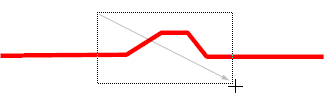
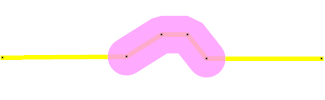
Points on the track or shape that are located within the rectangular drag area will be selected. The Track Selection is hilited in magenta.
Selecting items by dragging from a central point
To select waypoints or notes within a rectangular area around a central point, do the following:
- Hold down the Alt key.
- Drag the Select Tool over the map. The cursor will change to a crosshair. The selection rectangle will expand out in all directions from the point where you began dragging.
- Release the mouse button.
Items within the rectangular drag area will be selected. Only one kind of item (waypoints or notes) will be selected.
To select trackpoints or shape points within a rectangular area around a central point, do the following:
- Position the Select Tool over a blank portion of the map.
- Hold down the Alt key.
- Drag the Select Tool over the track or shape. The cursor will change to a crosshair. The selection rectangle will expand out in all directions from the point where you began dragging.
- Release the mouse button.
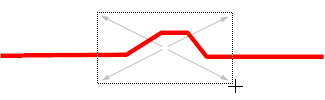
Points on the track or shape that are located within the rectangular drag area will be selected. The Track Selection is hilited in magenta.
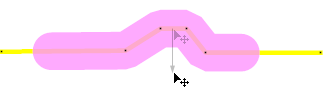
Creating a Selection along a track or shape
To create a Selection along a track or shape, do the following:
- Position the Select Tool over a track or shape on the map.
- Drag the Select Tool along the track or shape. The cursor will change to a hiliter pen.
 The Selection will be highlighted in magenta as you drag.
 - Release the mouse button.
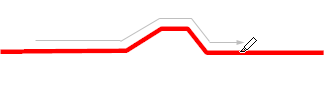
The Track Selection is hilited in magenta.
Adding more items to the current selection
To select additional items to the current selection, hold down the Shift key while clicking or dragging a selection rectangle.
Quickly switching to the Move Map Tool
To switch to the Move Selected Tool, hold down the Ctrl key.



© 1998-2024 TopoGrafix – 24 Kirkland Dr, Stow, MA – Email: support@expertgps.com