
Edit Track Command
The Edit Track Command displays the Edit Track Dialog, allowing you to make changes to the track.
To edit a track, select it and press Enter or right-click on the selected track, and click .
The Edit Track dialog will appear, allowing you to make changes to the track.
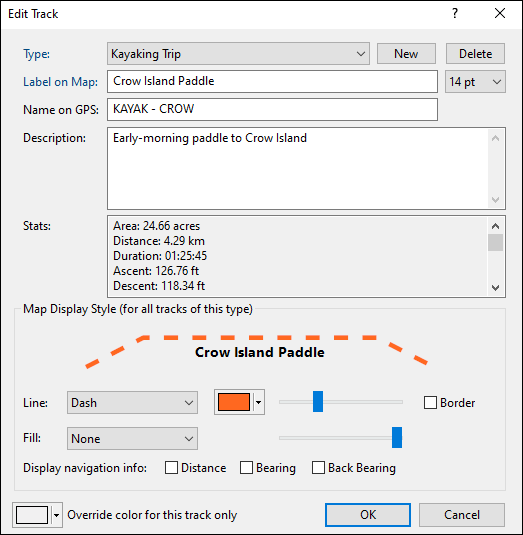
- Type
- Select a category for this track by choosing an existing Type from the drop-down list, or start typing to create a new Type. Learn more about working with types.
- Label on Map
- Enter the text to be displayed on the map.
- Text Size
- Set the font size for this track. This also sets the default text size for tracks you create in the future.
- Name on GPS
- Enter a unique identifying name for your track. If your GPS identifies tracks by name, this name will be sent to your GPS. ExpertGPS will automatically generate a track name as you type in the Label field.
- Description
- Enter a description of the track. This information is not sent to your GPS, but you can use it to store your own notes for future reference.
- Map Display Style (for all tracks of this type)
- You can specify a unique map display style for each category (Type) of track that you create in ExpertGPS. For example, all of your paddling tracks could be a dashed orange line, and all of your hiking tracks could be a different color. You can use the Fill pattern and color for closed tracks like a fence line or property border.
- Display Navigation Info
- Check these boxes to display the distance, bearing, and back-bearing for each straight-line section of the track. This is useful if you've hand-drawn a track on the map with straight-line sections across a bay or between navigation buoys. You may need to zoom in on the map to allow enough room for the text to appear.
- Override color for this track only
- All tracks of the same Type will be drawn with the same line width, pattern, and opacity, according to your Map Display Style settings. However, you may want to distinguish a single Hiking track from the other Hiking tracks on your map. Selecting a color here will override the track color in Map Display Style, but only for this individual track.



© 1998-2024 TopoGrafix – 24 Kirkland Dr, Stow, MA – Email: support@expertgps.com